
Getting Started with MySorty OCR:
Main Dashboard / Operations
After logging in, you’ll see the Main Dashboard, also called Operations.
It gives you access to all the key areas for handling your documents:
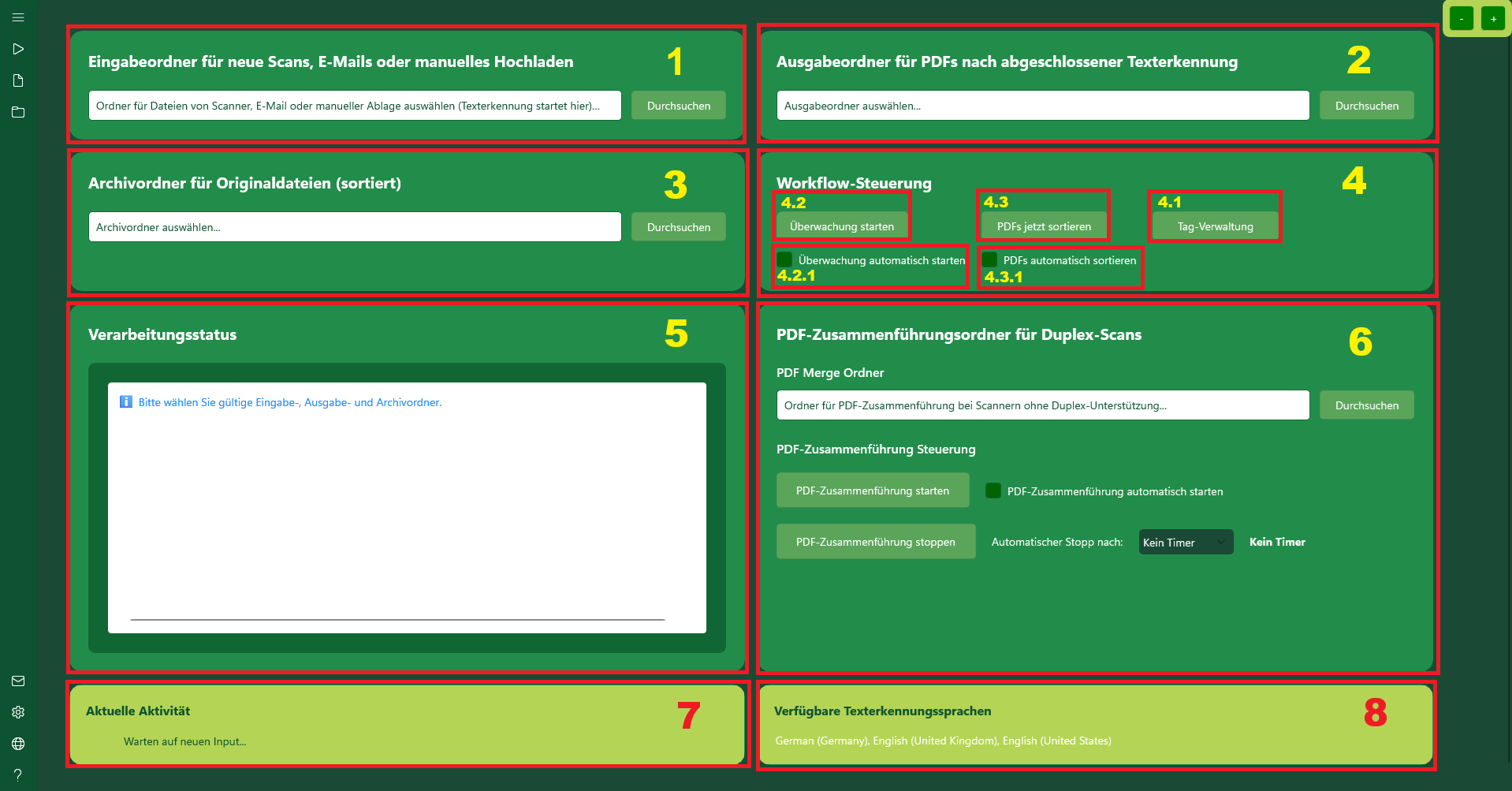
1. Input Folder: (New Scans, Emails, or manual uploads)
The Input Folder is the central location where new files are provided:
- Scans: Files directly from your scanner (automatically created as PDFs). 👉 Many scanners can be set up to scan directly into this folder (e.g., via “Scan to PC” or network folders like SMB). This saves you from manually moving files.
- Emails: Attachments (PDFs only).
- Manual Uploads: Add files directly from your computer (.jpg, .jpeg, .png, .pdf).
Monitoring, Archiving & OCR:
The Input Folder is monitored by MySorty. All original files (from the scanner, emails, or manual uploads) are automatically copied to the Archive Folder. At the same time, MySorty starts the OCR process to create searchable PDFs in the Output Folder.
Because this happens automatically, you don’t need to manage archiving manually, and the original files remain safely stored.

2. Output Folder: (Stores completed PDFs after text recognition)
The Output Folder is the storage location for all completed PDFs after text recognition is finished.
- Processed Files: After text recognition, PDFs are automatically placed here.
- Monitoring & Sorting: This folder will later be monitored so that MySorty can automatically sort the files using your tags.
Quick Workflow:
Files in the Input Folder → Text Recognition → Completed PDFs in the Output Folder (the Output Folder will later be monitored for tags and the PDFs will be be sorted into another folder)

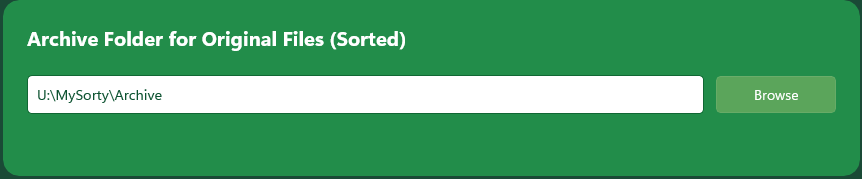
3. Archiv Folder: (Stores original files in an organized way)
The Archive Folder is the storage location for all original files after they are placed in the Input Folder.
- Monitoring: MySorty monitors the Input Folder to ensure that original files are reliably copied to the Archive Folder and can be sorted later.
- Sorting: Original files from the Input Folder (scanner, email attachments, or manual uploads) are automatically placed here by MySorty. Once the completed PDFs from the Output Folder are moved to the Sorted PDFs folder using tags, the same sorting is applied to the corresponding original files in the Archive Folder. This keeps OCR PDFs and original files consistently organized.
Note:
Original files are automatically sorted as long as the tags are configured correctly. If tags are not set up properly, the original files will still be saved in the Archive Folder, but without automatic sorting.
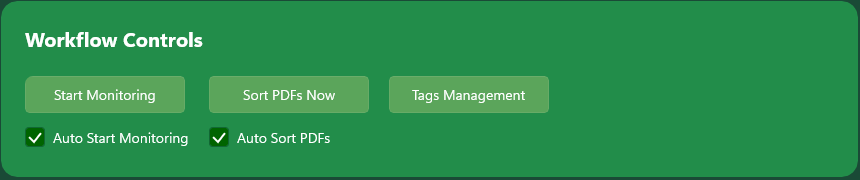
4. Workflow Controls: (Start monitoring, sort PDFs, manage automated processes)
The Workflow Control allows you to monitor the entire processing workflow of your files, start processes manually, or run them automatically. Here, you can detect new files, sort PDFs immediately or automatically, and manage tags.
- 4.1. Tags Management: Create, edit, or delete tags that are used for automatically sorting PDFs and original files.
- 4.2. Start Monitoring: MySorty monitors the Input Folder for new files, automatically moves the original files to the Archive Folder, and simultaneously creates searchable PDFs in the Output Folder. MySorty also automatically detects the text language, but it only works for languages supported by Windows Media OCR and installed on your Windows system.
- 4.3. Sort PDFs Now: All PDFs currently in the Output Folder are sorted immediately according to your tags. At the same time, the corresponding original files in the Archive Folder are sorted into the appropriate subfolders.
Automatic Start (Checkboxes):
- 4.2.1. Auto Start Monitoring: Enables folder monitoring when MySorty starts.
- 4.3.1. Auto Sort PDFs: Enables automatic sorting of all future files in the Output Folder based on your tags. Corresponding original files in the Archive Folder are also automatically moved to the appropriate subfolders.
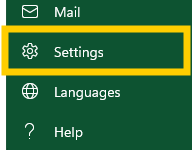
Note:
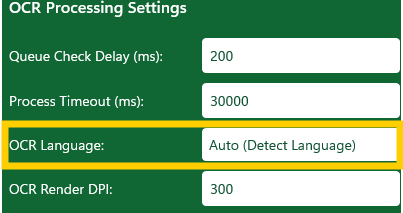
You can select the OCR language in the settings.
- Auto (Detect Language): MySorty automatically detects the text language.
- Select Specific Language: You can also choose a specific language that is installed on your Windows system.
Benefit of Selecting a Specific Language: Choosing a fixed language speeds up the OCR process, especially if you only work with documents in that language.
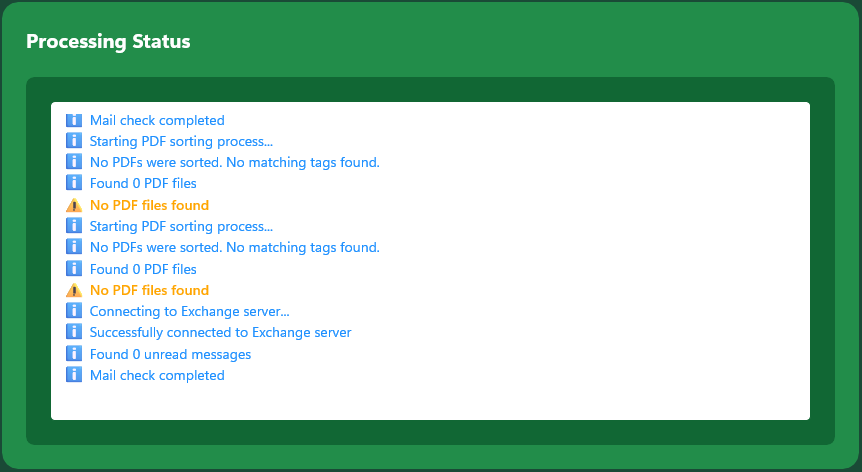
5. Processing Status:
Displays important information about the current processing task (e.g., new file detected, OCR in progress, file archived).
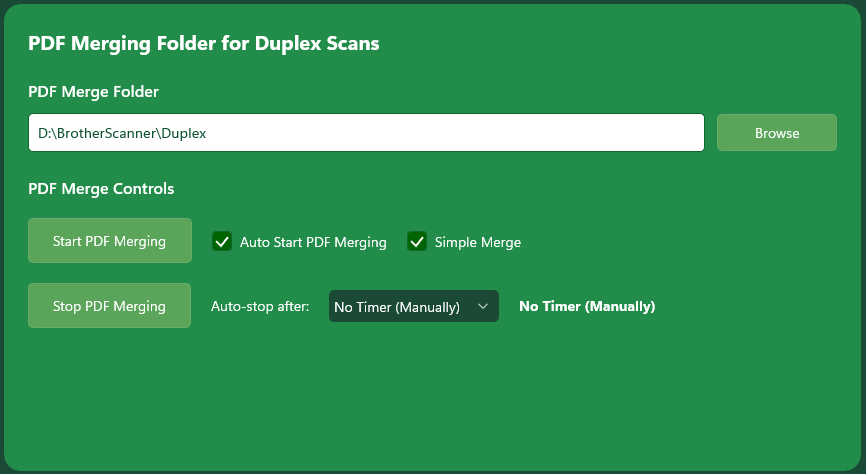
6. PDF Merging: (Combine files from duplex or standard scans)
PDF Merging is especially useful if your scanner does not support duplex (double-sided) scanning.
This feature is ideal when the front and back pages are scanned separately and need to be combined into a single complete document.
- PDF Merge Mode: PDF Merging supports two modes:
- Simple Merge (default): Appends PDFs one after another. Example: PDF1 pages 1‑3 + PDF2 pages 4‑6 → Final PDF pages 1‑6. Perfect for combining separate documents.
- Duplex Scan Mode: Automatically interleaves odd and even pages for simplex scanners. Scan front sides → flip stack → scan back sides → app merges correctly. Ideal for creating double-sided PDFs without a duplex scanner.
Use the checkbox in PDF Merge Controls: “Simple Merge”
- Checked = Simple Merge (default)
- Unchecked = Duplex Scan Mode
- PDF Merge Folder: Place the scanned PDF pages here that you want to merge into a single document.
👉 Many scanners can be set up to scan directly into this folder (e.g., via “Scan to PC”). This saves you from manually moving the files. - Start PDF Merging: Begins the process and merges the files in the Merge Folder into a single PDF.
- Stop PDF Merging: Stops the ongoing merge process.
Automatic Start (Checkbox) / Stop (Timer):
- Auto Start PDF Merging: Enables automatic merging whenever new files are detected in the Merge Folder.
- Auto Stop Timer for PDF Merging: Allows you to set a time limit for automatic merging. Options: No timer, 5, 10, 20, 30, 40, 50, or 60 minutes.
7. Current Activity:
Displays the file name of the document currently being processed by MySorty.

8. Text Recognition Languages:
MySorty uses the OCR functionality built into Windows.
This means MySorty can only recognize languages that are installed on your system as language packs.
Check Available Languages:
MySorty automatically displays all installed languages (e.g., German, English, etc.).
Install Additional Languages (Windows 11):
To add new text recognition languages:
- Open Windows Settings (Win + I).
- Go to Time & Language → Language & Region.
- Click Add a language.
- Select the desired language (e.g., French, Italian).
- Make sure the optional language features include Text-to-Speech / Optical Character Recognition. (In most cases, this feature is added automatically with the language.)
Note:
You can have multiple languages installed at the same time. All installed OCR languages will automatically appear in MySorty.
