
MySorty Tags Management:
With MySorty Tags Management, you can create rules to automatically sort processed PDFs into the correct folders. These tags are used for both the searchable PDFs in the Output Folder and the original files in the Archive Folder.
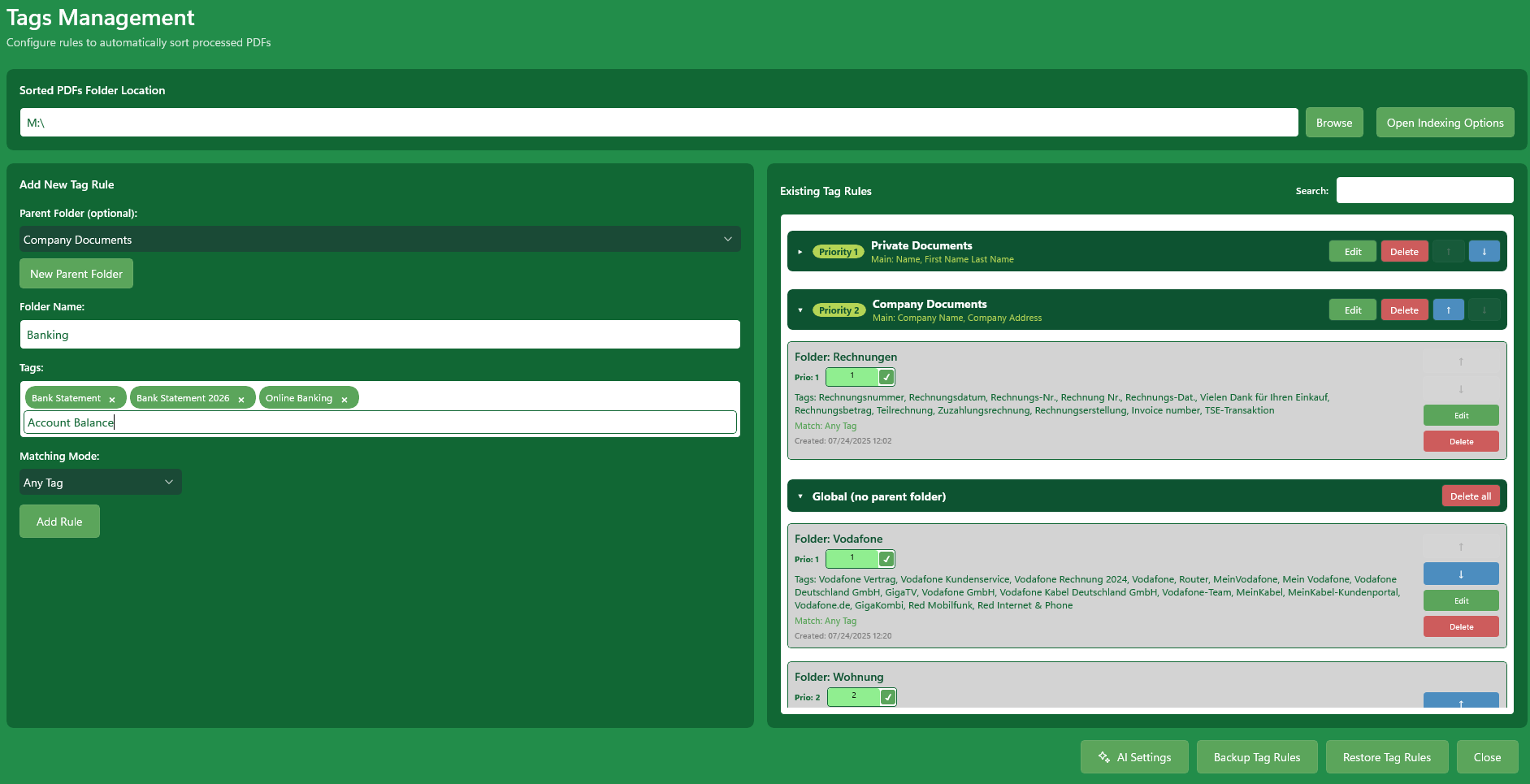
1. Sorted PDFs Folder Location:
Select the folder where the text recognized PDFs should be organized and stored.
This is the folder monitored by MySorty to ensure that the corresponding original files in the Archive Folder are also sorted in the same way.

2. Indexing Options:
This feature ensures that the searchable PDFs in the Output Folder are properly indexed by Windows, allowing you to quickly find content using Windows Search.
Step-by-Step Guide:
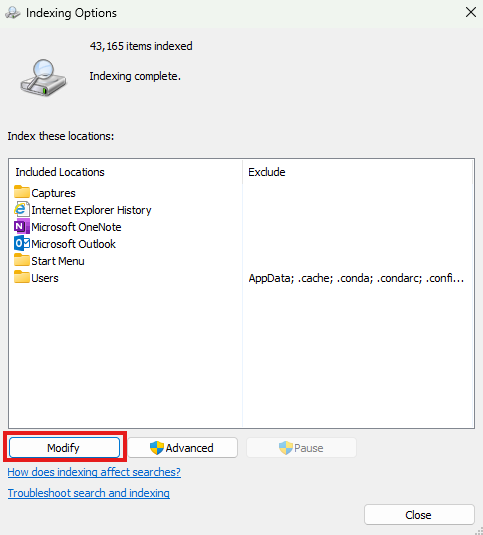
- In the Tags Management window, click “Open Indexing Options.”
- The Windows Indexing Options window will open.
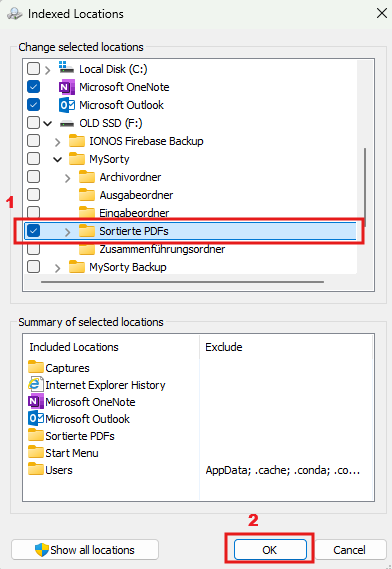
- Click Modify.
- Select the same folder you previously chose for your sorted PDFs.
- Click OK.
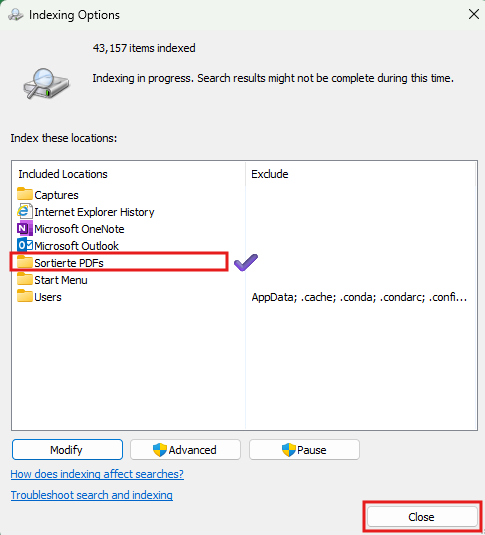
- Windows will now automatically start indexing the PDFs.
- Once indexing is complete, you can find content within your searchable PDFs directly via Windows Search.
Note:
- Indexing may take several minutes depending on the number of files.
- Any new PDFs moved to this folder will be automatically added to the index.

3. Sorting priority:
At the top of the tag management window there is a switch that lets you define what MySorty checks first when sorting a PDF.
First by file content (default):
MySorty first checks the content of the PDF using your tag rules. If no tag rule matches, the file name rules are checked.

First by file name:
MySorty first checks the file name rules (see section 5). If no file name rule matches, the document content (tags) is checked.

The selected priority is automatically saved and applied to every sorting process.
4. Add New Tag Rule:
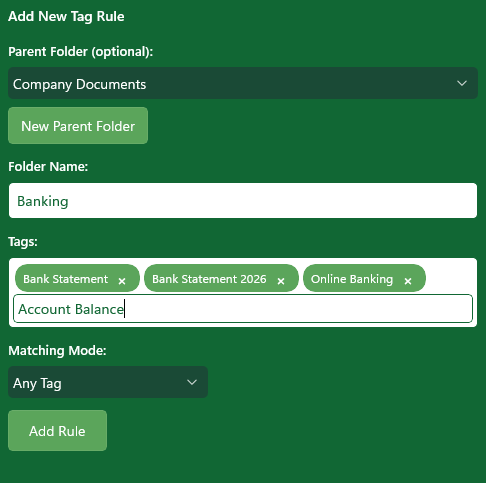
Here you can create a new Tag Rule:
Parent Folder (Optional):
Here you can select an already created parent folder from the dropdown list.
Alternatively, you can choose the option “Global”. In this case, the tag rule will not be assigned to a parent folder.
New tag rules without a parent folder are created as global rules and are sorted by MySorty independently of any parent folder structure.
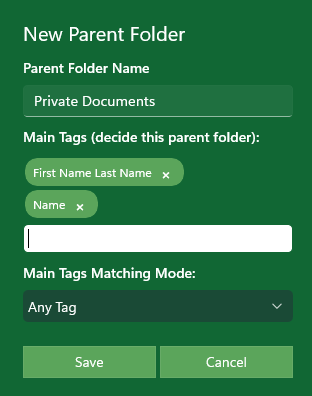
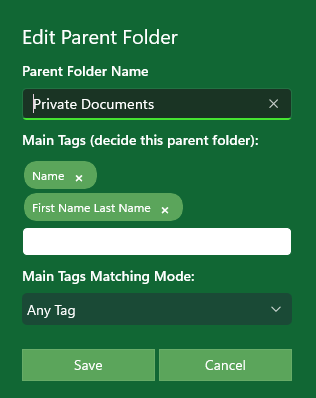
New Parent Folder:
Here you can create a new parent folder.
Parent folders have their own main tags.
MySorty first checks whether a document contains one of these main tags.
Only if a document matches these main tags will the tag rules within this parent folder be applied, and the document will then be sorted into a subfolder accordingly.
Folder Name:
Enter the name of the target folder that will be created inside the previously selected
“Sorted PDFs” folder.
PDFs that match the tags specified below will automatically be moved into this folder.
Subfolders and existing folder structure:
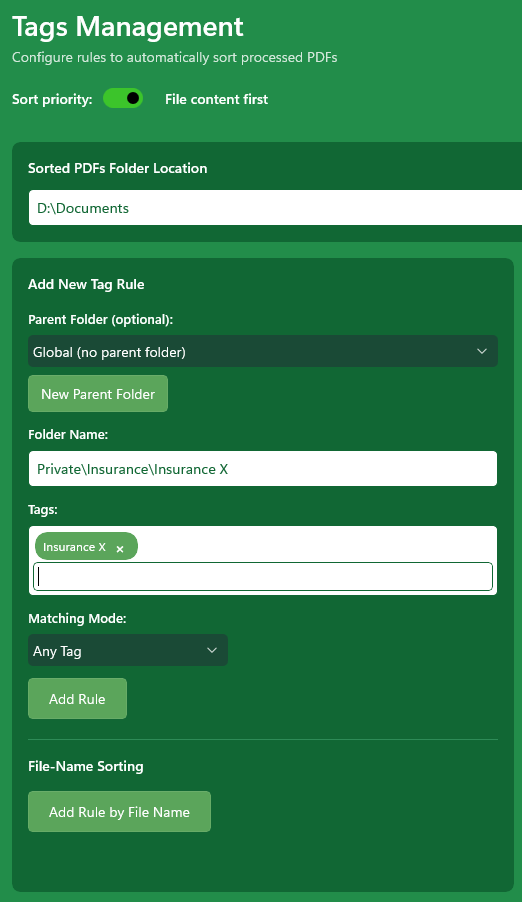
You can enter several folders in the Folder Name field. Separate them with a backslash \
Example:
Sorted PDFs Folder Location:
D:\Documents
Folder Name:
Private\Insurance\Insurance X
The PDF is moved to:
D:\Documents\Private\Insurance\Insurance X
Already have your own folder structure? Select its top folder as the Sorted PDFs Folder Location and write the folder names exactly as they appear on your drive. Existing folders and files stay unchanged, and MySorty creates any missing folders automatically.
Tags:
Enter a list of keywords that MySorty will use to search through the PDFs.
Notes:
- A tag can consist of multiple words (e.g., “Utility Bill for 2025”).
- Choose meaningful and unique tags to avoid errors or conflicts with other tag rules.
- Keep in mind that a PDF may match multiple rules — clear tag definitions help ensure files are sorted correctly.
Matching Mode:
- Any Tag:
MySorty searches each PDF for any of the listed tags. If at least one tag is found, the PDF is moved to the target folder.
- All Tags:
MySorty checks whether all specified tags are present in the PDF. Only when all are found will the PDF be moved to the target folder.
Click Add Rule to create the rule.
5. Sorting by file name:
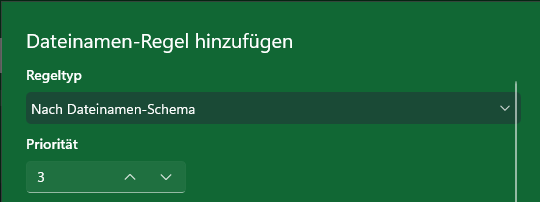
With the button “Add rule based on file name” you can create rules that sort a PDF based on its file name, regardless of the document content. There are two rule types:

Priority:
Each file name rule has a priority. Rules with a lower number are checked first. You can change the order using the arrows or enter the priority directly in the field.
Rule type:
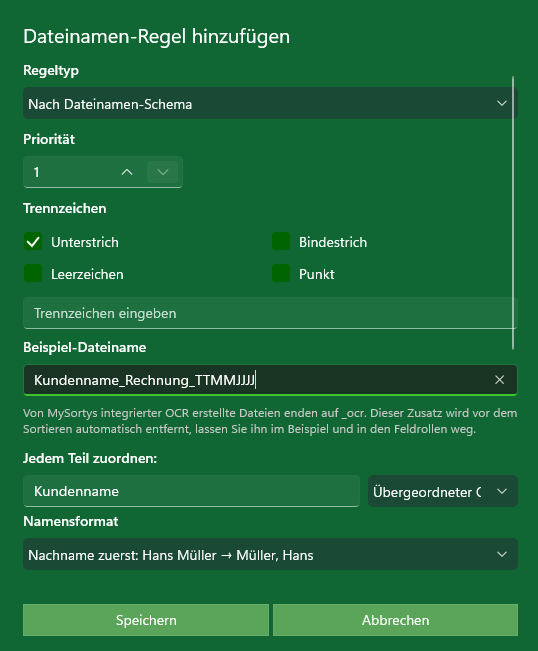
1. By File Name scheme:
This rule type splits the file name using a separator into individual parts and assigns a role to each part.
Separator:
Choose the character that separates the parts in the file name: underscore _, hyphen -, space, or dot. You can also enter a custom separator. Multiple separators at the same time are possible.
Sample file name:
Enter a typical file name (without extension) so that MySorty splits the name into individual parts and you can assign roles directly. Files created by MySorty’s OCR end with _ocr – this suffix is automatically removed during sorting.
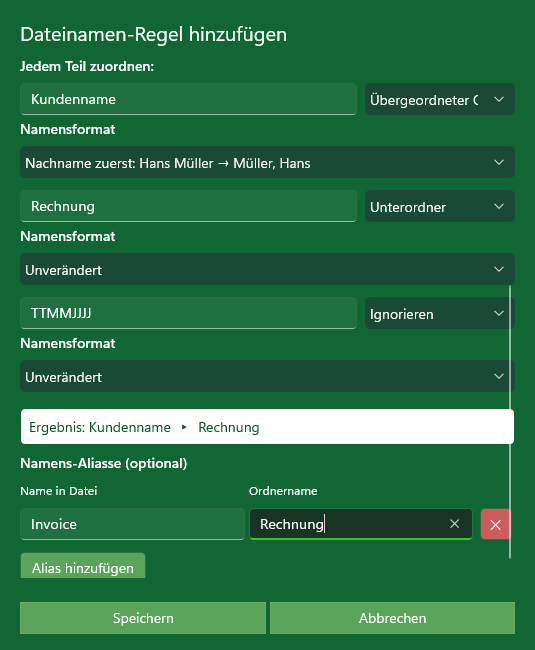
Assign fields:
Each part of the file name is assigned a role:
- Parent folder – this part is used as the main folder
- Subfolder – this part is used as a subfolder inside the main folder
- Ignore – this part is not considered during sorting
Name format:
You can optionally choose a format for each field:
- Unchanged
- Last name first (e.g. Hans Müller → Müller, Hans)
- Last name first with second name
- UPPERCASE
- Capitalized initials
Preview:
Below the fields you can immediately see into which folder path MySorty would sort the file.
Name aliases (optional):
Here you can map abbreviations or short forms to full folder names. Example: RentenV → Rentenversicherung. This way, the abbreviated part in the file name is replaced by the full folder name.
2. If File Name contains:
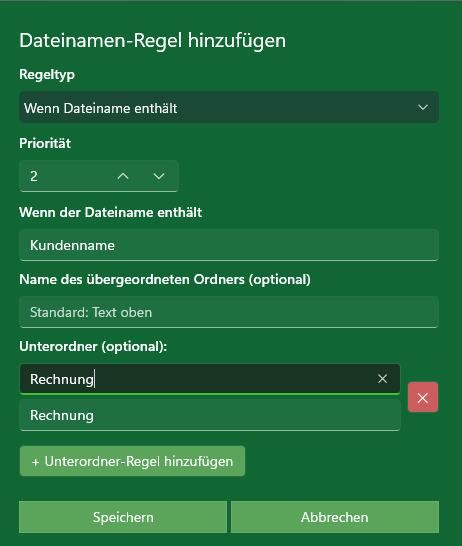
This rule type checks whether the file name contains a specific text and sorts the PDF accordingly.
If the file name contains:
Enter the text that MySorty should search for in the file name (e.g. Müller).
Parent folder name (optional):
If the file name contains the specified text, the PDF will be moved into this folder. If you leave this field empty, the searched text itself will be used as the folder name.
Subfolder (optional):
You can define additional rules for subfolders. If the file name also contains another text (e.g. invoice), the PDF will be sorted into a corresponding subfolder. For each subfolder rule you specify:
- Contains – the additional text to search for
- Subfolder name – the name of the subfolder (empty = the text is used as the name)
Notes:
- File name rules are especially suitable for files whose names already contain structured information (e.g. customer name, date, document type).
- The sorting priority (section 3) determines whether file name rules are checked before or after tag rules.
- File names are checked without the _ocr suffix, which MySorty automatically adds during text recognition.
6. Existing Tag Rules:
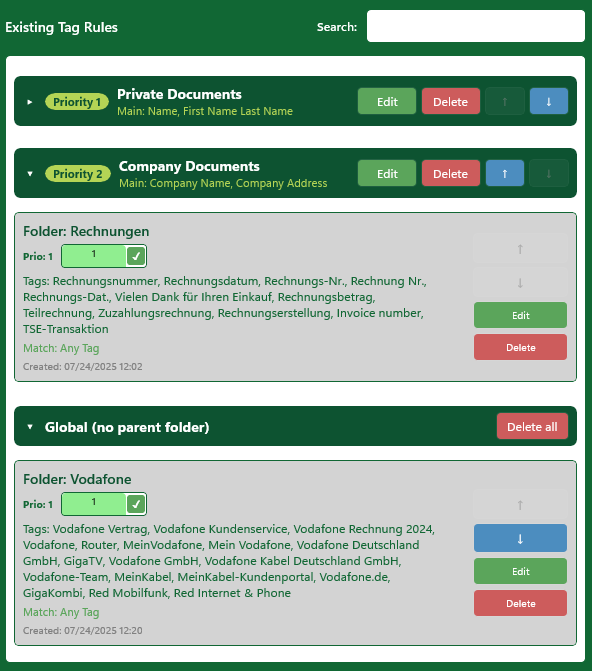
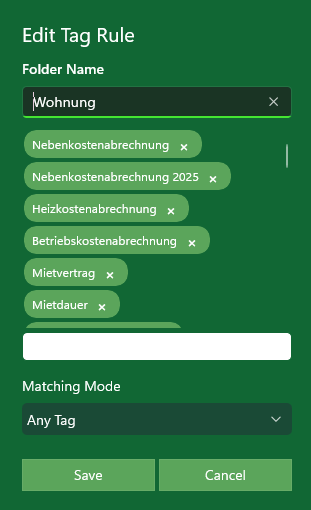
Here you can see all the rules you have already created. Each rule displays the following:
Folder:
The target folder where the PDFs will be moved.
Tags:
The keywords MySorty searches for in the PDFs.
Matching Mode:
Indicates whether the PDFs are sorted by Any Tag or All Tags.
Search Bar (Search Tag Rules):
With the search bar, you can quickly search for specific tag rules.
The list is automatically filtered as you type.
Created:
The date and time when the rule was created.
Up/Down Arrows (Priority):
Use these buttons to set the order of your tag rules.
- The rule with Priority 1 is applied first, followed by Priority 2, and so on...
This allows you to decide which rules take precedence when multiple rules could apply.
Edit Priority Directly:
The priority can also be manually adjusted directly in the priority field without using the arrows.
Edit:
Allows you to modify an existing tag rule, for example:
- Add or remove tags.
- Change the target folder name.
- Adjust the matching mode (Any Tag / All Tags).
Delete:
Completely removes the rule from the list.
Notes:
- Rules apply to all new PDFs in the Output Folder.
- Original files in the Archive Folder are sorted according to the same rules.
- Tag rules can contain not only individual words but also entire sentences.
- Plan your tags carefully to avoid collisions.
7. Backup and Restore Tag Rules:

Backup Tag Rules:
Creates a backup of all currently existing tag rules. This allows you to save your rules before making major changes.
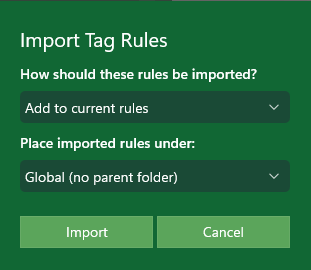
Restore Tag Rules:
Restores previously backed-up tag rules. Useful for recovering rules that were accidentally deleted or modified.
Here you can choose how the backups are imported: either add them to the current rules or replace all existing rules.
Additionally, you can define where the rules should be imported:
- Keep the original structure
- Global
- Or into an already created parent folder
Notes:
- Please make sure you always have a backup of your tag rules before making any changes.
8. AI Settings (Beta, MySorty Pro):
With “AI Settings” you set up MySorty AI. It sorts documents without a matching rule automatically and gives files with meaningless names a clear name. You can find everything about it in the MySorty AI guide.