How to Connect Your Email in MySorty and Automatically Save PDF Attachments:
Here you can connect an email account to MySorty, so that PDF files are automatically extracted from your inbox and added to your Input Folder.
The email feature is available for Pro Plans only.
1. Open Email Settings:
Click the Mail icon in the navigation menu on the left side.
2. Select Provider:
Select your email provider:
- Gmail
- Outlook
- Outlook / Microsoft 365 (OAuth2)
- Yahoo
- iCloud
- GMX
- Web.de
- Custom
3. Connect Account:
Settings by Provider:
Provider
Gmail
Outlook
Outlook / Microsoft 365 (OAuth2)
Yahoo
iCloud
GMX
Web.de
Custom
IMAP Server
imap.gmail.com
outlook.office365.com
outlook.office365.com
imap.mail.yahoo.com
imap.mail.me.com
imap.gmx.net
imap.web.de
Enter Manually
Port
993
993
993
993
993
993
993
993
Password
App Password Required - Instruction
App Password Required - Instruction
OAuth2-Login Required
App Password Required - Instruction
App Password Required - Instruction
App Password Required - Instruction
App Password Required - Instruction
Password
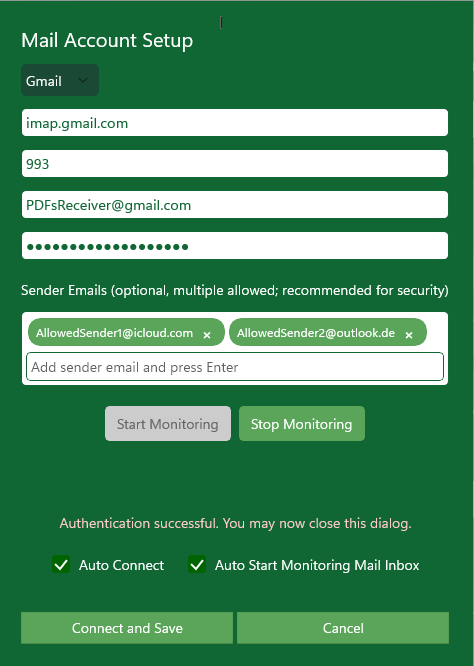
Alle Providers Except Outlook / Microsoft 365 (Without OAuth2):
1. Enter the server and port (these are automatically filled for standard providers).
2. Enter your Email address.
3. Enter your Password:
- For providers requiring an app password (e.g., Gmail, Yahoo, iCloud, GMX, Web.de), use the specially created app password (see the instruction link in the provider table for each provider).
4. Optional but highly recommended: Add sender email addresses (multiple allowed; recommended for extra security).
5. Check the boxes according to your preferences:
- Auto Connect – MySorty will log in automatically when the program starts.
- Auto Start Monitoring Mail Inbox – MySorty will import new PDFs automatically at startup.
6. Click Connect and Save to apply the settings.
Note:
- Emails from which a PDF has been extracted are marked as read by MySorty.
- They are not deleted.
- Once an email is marked as read, MySorty will not process it again.
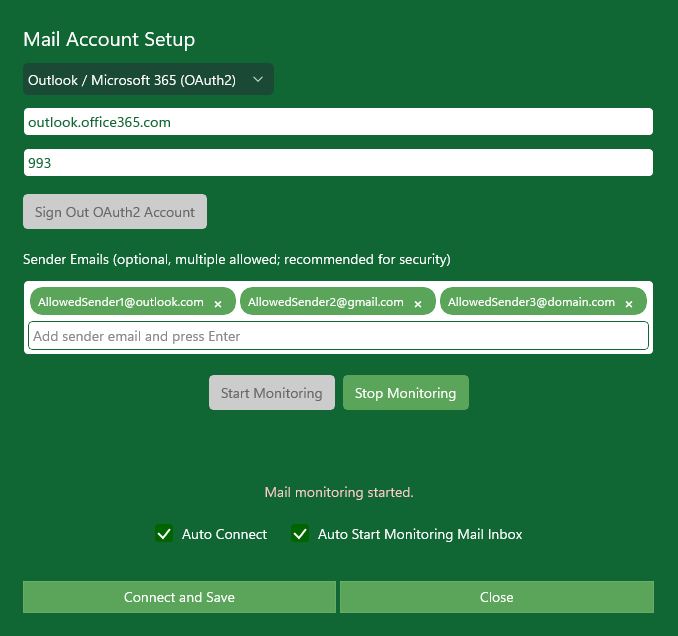
For Outlook / Microsoft 365 (With OAuth2):
1. The fields for email address and password are not displayed.
2. Check the boxes according to your preferences:
- Auto Connect – MySorty will log in automatically when the program starts.
- Auto Start Monitoring Mail Inbox – MySorty will import new PDFs automatically at startup.
3. Click Connect and Save – OAuth2 handles the authentication automatically.