
 MySorty
 Finances: Income, Expenses and VAT at a Glance
In “Finances” you see what you earned and spent, your profit and the VAT for your advance VAT return. MySorty reads the invoices from two folders: one for your income and one for your expenses. You check each invoice briefly, and only checked invoices count.
Everything runs locally on your PC. Your invoices are never uploaded or changed. MySorty AI is not needed for this.
Note: Finances is only included in MySorty Pro (the Privat Pro and Business Pro plans). The overview is for orientation and does not replace tax advice.
1. Requirements
- MySorty Pro (Privat Pro or Business Pro)
- One folder for your income: the invoices your customers pay you.
- A separate folder for your expenses: the invoices you pay.
- Invoices as PDF (scanned ones too), as e-invoice (ZUGFeRD / Factur-X) or as XRechnung (XML).
Subfolders, e.g. one per year or month, are no problem.
2. Open Finances and Create a Business
Click “Finances” in the navigation menu on the left.
Step-by-step guide:
- Click “+ Create business”.
- Type a name or pick a company from the list. The list shows the companies from the Invoices tab. If a company is set up there as a small business, “Small business” is already selected.
- Click “Create”.
Finances has four areas: “Income”, “Expenses”, “Overview” and “Setup”.
Several businesses:
With “+ New” you create another business with its own folders. Under “Business” you choose which one is shown.
3. Setup: Folders and VAT
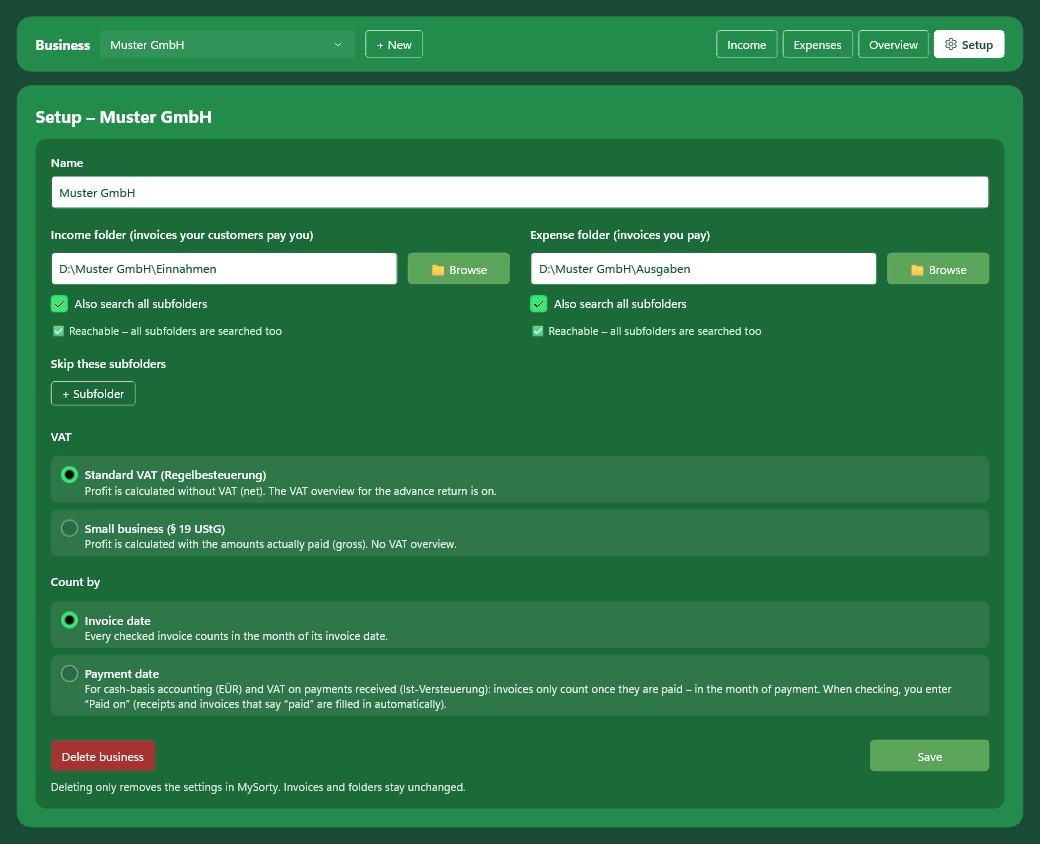
In the “Setup” area you choose where MySorty reads the invoices from.
Income folder:
The folder with the invoices your customers pay you.
Expense folder:
The folder with the invoices you pay.
“Also search all subfolders”:
When this is ticked, MySorty also reads all subfolders, e.g. 2026\January. When it is not ticked, MySorty only reads the files directly in the folder.
“Skip these subfolders”:
With “+ Subfolder” you choose subfolders that should not be read, e.g. a folder with quotes. Invoices in them don’t count. Anything you already checked there stays saved and counts again as soon as you include the subfolder again. To do that, simply click the skipped subfolder.
VAT:
- “Standard VAT (Regelbesteuerung)”: Profit is calculated without VAT (net). The overview shows you the VAT for your advance VAT return.
- “Small business (§ 19 UStG)”: Profit is calculated with the amounts actually paid (gross). There is no VAT overview.
Count by:
- “Invoice date”: Every checked invoice counts in the month of its invoice date. This is the default.
- “Payment date”: For cash-basis accounting (EÜR) and VAT on payments received (Ist-Versteuerung). An invoice only counts once it is paid, in the month of payment. For this, you enter “Paid on” for each invoice (see sections 4 and 6).
Which setting is right for you is best clarified with your tax advisor.
Then click “Save”.
Folder check:
MySorty checks the folders right away and shows a ❌ message if there is a problem, for example when:
- income and expenses are the same folder or one is inside the other.
- the folder is MySorty’s input folder, output folder or PDF merge folder. Files there come and go while MySorty works.
- the folder can’t be reached, e.g. because a network drive is disconnected.
Notes:
- Don’t choose the folder from which the Invoices tab moves finished invoices away. Otherwise the moved invoices show up here as “Missing”.
- “Delete business” only removes the settings in MySorty. Your invoices and folders stay unchanged.
- While a year is locked (🔒), “Count by” can’t be changed. Otherwise invoices would move into or out of that year. Unlock the year in the overview first.
4. The Income and Expenses Lists
MySorty searches your folders and shows all PDFs and e-invoices in a list with the columns “Status”, “File”, “Subfolder”, “Type”, “Date”, “Partner”, “Gross” and “Actions”.
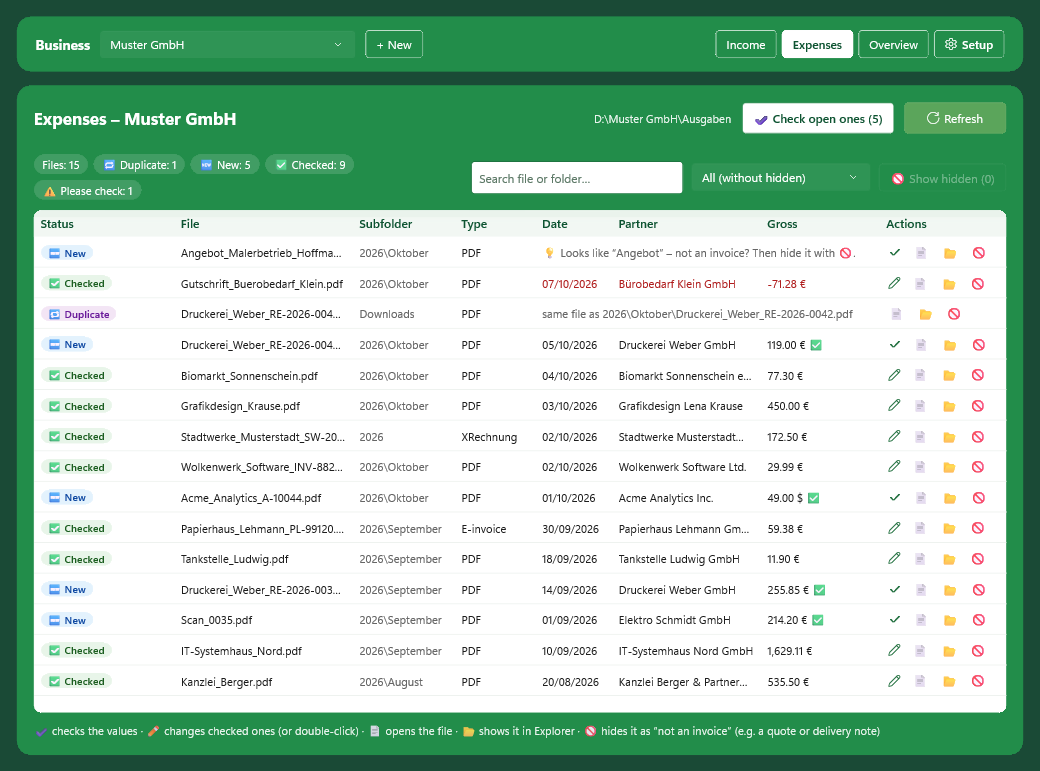
- Click a column header to sort the list.
- Use the search field to find files and subfolders.
- Use the filter to show, for example, only new invoices or all with “⚠️ Please check”.
- Move the mouse over an invoice to see the invoice number, net, VAT and gross.
- “Refresh” searches the folders again right away.
Actions in each row:
- ✔ checks the invoice (or double-click the row).
- ✏️ changes a checked invoice (or double-click the row).
- 📄 opens the file.
- 📂 shows the file in Explorer.
- 🚫 hides the file as “Not an invoice”, e.g. a quote or a delivery note. ↩ shows it again. You see hidden files with “🚫 Show hidden”.
- ✕ removes an entry from the list when its file is missing.
With “Count by: Payment date”:
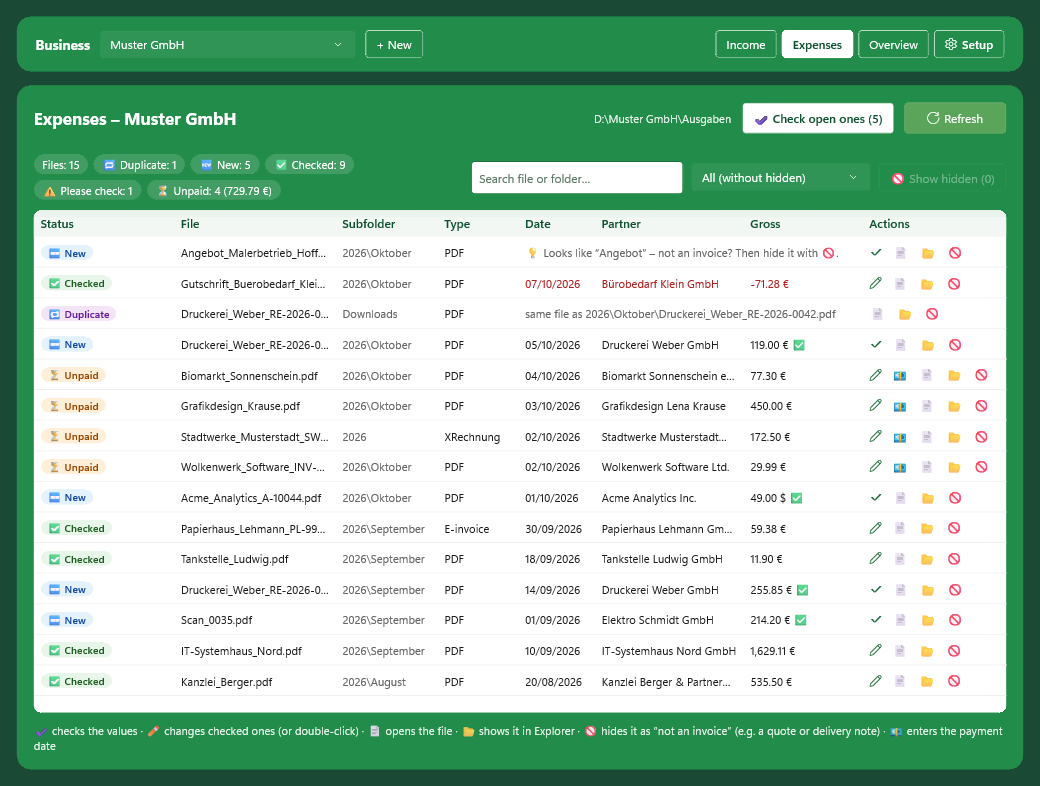
- Checked invoices without a payment date have the status “⏳ Unpaid”. They only count once they are paid.
- At the top you see how many invoices are unpaid and their total, e.g. “⏳ Unpaid: 4 (729.79 €)”.
- Use the filter “⏳ Unpaid” to show only these invoices.
- 💶 enters the payment date. Pick the date in the calendar or click “Today” or “= invoice date”, then “Save”. The invoice is then “✅ Checked” and counts in the month of payment.
- To change a payment date you entered, use ✏️.
- Move the mouse over an invoice to also see when it was paid.
5. What Does the Status Mean?
| Status | Meaning |
|---|---|
| 🆕 New | Not checked yet. Doesn’t count yet. |
| ✅ Checked | Checked by you. Counts in the overview. |
| ⏳ Unpaid | Only with “Count by: Payment date”. Checked by you, but without a payment date yet. Counts once you enter “Paid on”. |
| ✏️ Changed | The file was changed after you checked it. Please check it again. |
| 🔁 Duplicate | The same file is in the folder twice. It only counts once. |
| 🔁 Same invoice | Same partner and same invoice number as another file, e.g. the PDF and the XRechnung of the same invoice. It only counts once. |
| ⚠️ Also in expenses ⚠️ Also in income | The same file is in both folders. Check where it belongs and delete the wrong copy. |
| ❌ Missing | The file was deleted or moved out of the folder. If it was checked, it keeps counting until you remove it with ✕. |
| ⛔ Unreadable | The file is damaged or protected with a password. |
| 🚫 Not an invoice | Hidden by you. Doesn’t count. |
| 🔒 Locked | Belongs to a locked year and can no longer be changed (see section 11). |
6. Check Invoices
Click “✔ Check open ones”. MySorty opens the open invoices one after the other, in the order of the list. Filter and sorting apply. You open a single invoice with ✔ or by double-clicking it.
On the left you see the invoice, on the right the values that were read. Coloured boxes in the PDF show where MySorty read a value.
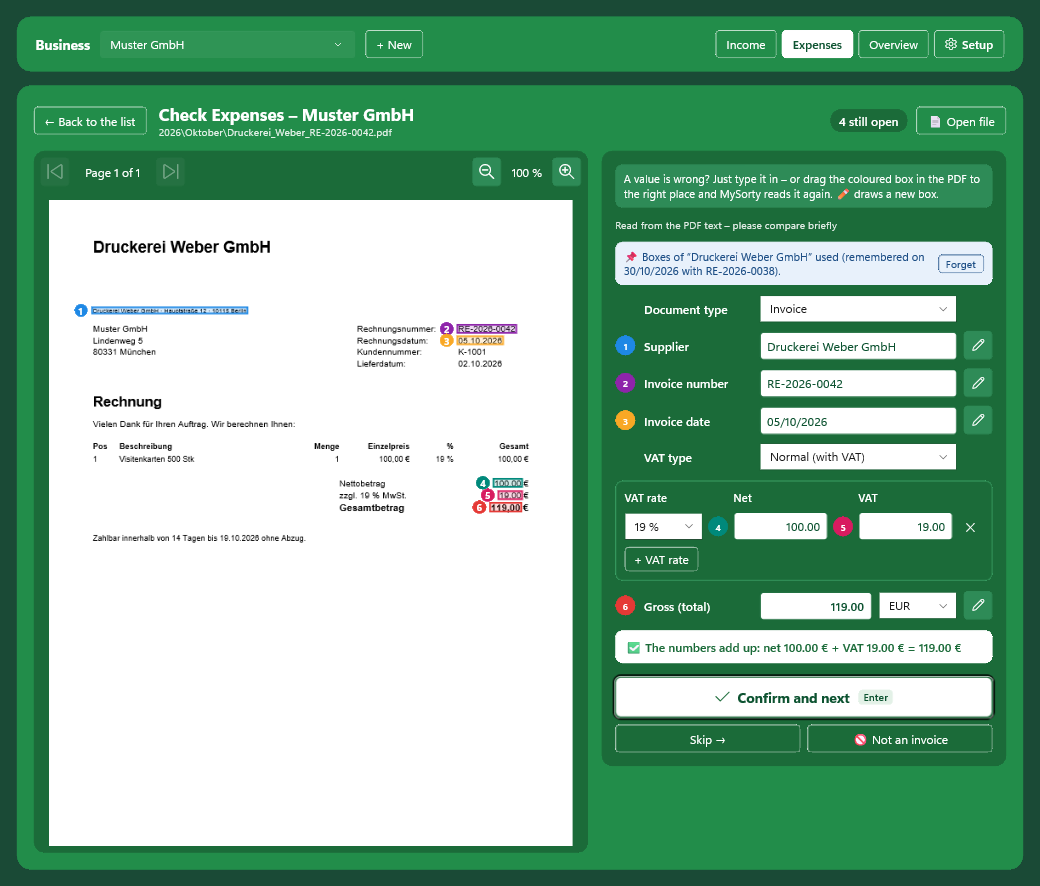
Where do the values come from?
- From the e-invoice data: exact, for ZUGFeRD and XRechnung.
- From the PDF text: please compare briefly.
- With text recognition (OCR): for scanned invoices, please check carefully.
- Nothing found: type the values or draw boxes.
The fields:
- “Document type”: “Invoice”, “Credit note” (counts negative) or “Receipt”.
- “Customer” for income or “Supplier” for expenses.
- “Invoice number” and “Invoice date”. With “Count by: Invoice date”, the invoice date decides in which month and quarter the invoice counts.
- “Paid on”: only with “Count by: Payment date”. Enter when the invoice was paid, or click “Today” or “= invoice date”. If it isn’t paid yet, leave the field empty. The invoice then counts in the month of payment.
- “VAT type”: “Normal (with VAT)”, “small business (§ 19 UStG)” when the seller is a small business, “VAT exempt”, “reverse charge” or “foreign invoice without German VAT”.
- “VAT rate” with “Net” and “VAT”. If an invoice has several VAT rates, e.g. 19 % and 7 %, add another row with “+ VAT rate”.
- “VAT rate (§ 13b)”: only for expenses with “reverse charge”. Choose 19 % or 7 %. MySorty then shows you the tax you owe yourself.
- “Gross (total)”
- “Amount in euros”: only for invoices in another currency, e.g. the amount from your bank statement.
“Paid on” is filled in automatically:
- for a receipt, with the receipt date.
- when the invoice says e.g. “bereits bezahlt”, “payment received” or “amount paid”, with the invoice date.
MySorty shows you a short note about it. If the date is wrong, simply change it.
Number check:
MySorty checks whether net and VAT add up to the gross amount. You then see “✅ The numbers add up” or a ⚠️ note. You can still confirm.
The buttons:
- “Confirm and next” (or Enter): saves the values as checked and opens the next open invoice.
- “Skip →”: check this invoice later.
- “🚫 Not an invoice”: hides e.g. a quote and goes on.
- “← Back to the list” (or Esc)
When all open invoices are checked, you see “✅ All open invoices in this list are checked.”
7. Wrong Value? Move a Box or Draw a New One
If a value is wrong, you have two options:
- Simply type the correct value.
- Drag the coloured box in the PDF to the right place. MySorty reads it again and shows you what is in the box.
Draw a new box:
Click ✏️ next to the field and drag a box around the value with the mouse. Press Esc to cancel. “Remove box” deletes a box, the value stays.
Notes:
- This also works with scanned invoices. MySorty then reads the box with text recognition (OCR).
- If there is no matching value in the box, MySorty shows you the text it read. Then make the box a little bigger.
- An XRechnung (XML) has no page view. Its values come exactly from the e-invoice data.
8. MySorty Remembers the Boxes
When you confirm an invoice, MySorty remembers where the values are for this partner. On the next invoice from the same supplier or customer, MySorty places the boxes in the right spots straight away. You then see the note “📌 Boxes of … used”.
If you already created a profile for these invoices in the Invoices tab, MySorty uses its boxes too.
Notes:
- If a partner changed the look of their invoices, MySorty doesn’t use the old spot. You draw the box once again, and MySorty remembers the new spot.
- “Forget” deletes the remembered boxes for this partner.
- E-invoices don’t need boxes. They are always read exactly.
9. Change Checked Invoices
Click ✏️ next to a checked invoice or double-click the row. “Edit invoice” opens.
- Change the values and click “Save changes”. Every change is recorded in the “History” below.
- “↩ Undo check” sets the invoice back to “New”. Your values stay saved. The next time you check it, you take them with “↩ Take the old values”.
10. The Overview
In the “Overview” area you see your numbers for a period. Under “Period”, choose the year and then “Whole year”, a quarter, a month or “Custom period …” with a start and end date.
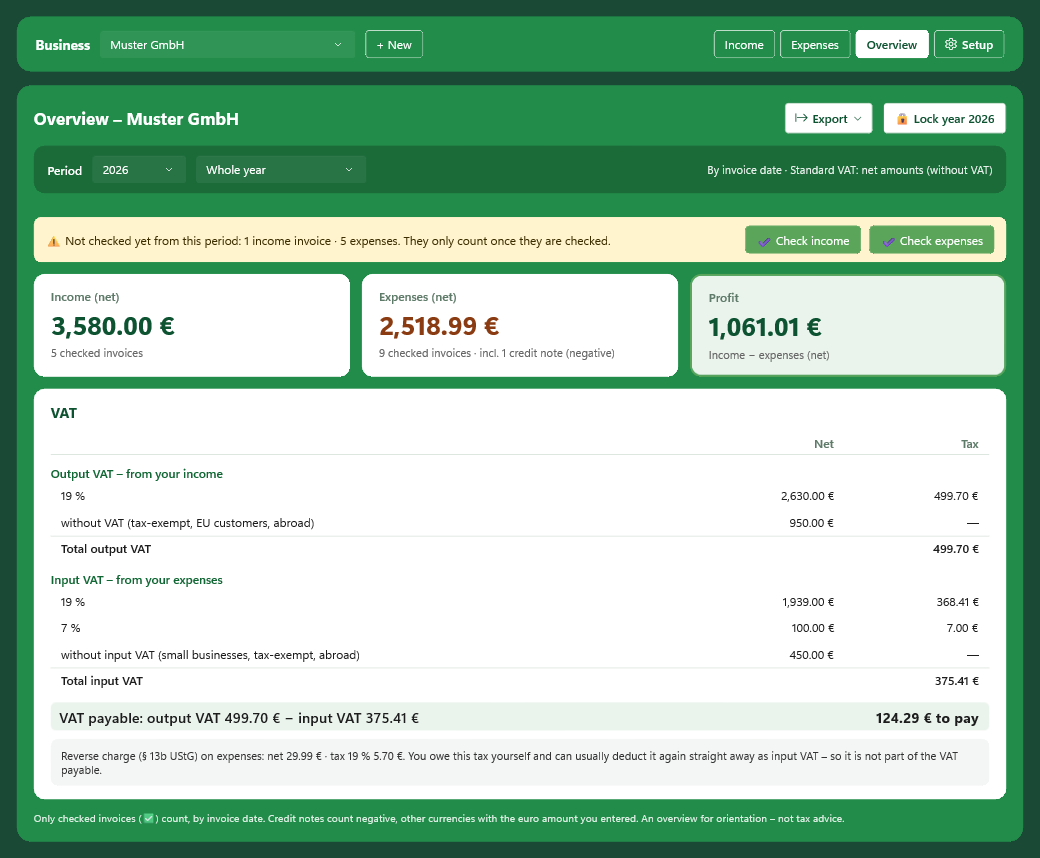
You see:
- Income and expenses, each with the number of checked invoices.
- Profit or loss: income minus expenses.
- With “Standard VAT”, all amounts are net. With “Small business”, they are gross.
VAT (only with “Standard VAT”):
- Output VAT from your income, by VAT rate.
- Input VAT from your expenses, by VAT rate.
- VAT payable: output VAT minus input VAT, shown as an amount “to pay” or as a “refund”.
- Reverse charge (§ 13b UStG) on expenses is shown separately, by VAT rate. You owe this tax yourself and can usually deduct it again straight away as input VAT. That’s why it is not part of the VAT payable.
What counts:
- Only checked invoices (✅), by invoice date or by payment date, depending on what you set under “Count by”. Next to the period you see which date is used.
- Credit notes count negative.
- Invoices in other currencies count with the amount in euros you entered.
- If there are still unchecked invoices in the period, MySorty shows a ⚠️ note. Check them directly with “✔ Check income” or “✔ Check expenses”.
- With “Payment date”, only paid invoices count. If there are checked but unpaid invoices, MySorty shows a ⏳ note. “⏳ Unpaid income” or “⏳ Unpaid expenses” opens them directly, and you enter the payment date with 💶.
Note:
The overview is for orientation and does not replace tax advice.
11. Lock a Year
When you are done with a year, e.g. after your tax return, click “🔒 Lock year …” in the overview, for example “🔒 Lock year 2025”.
After that, for all invoices that count in this year:
- They can no longer be checked, changed or hidden. The list shows “🔒 Locked”.
- The numbers of the year stay as they are, even if a file is changed or deleted later.
- Unchecked invoices from this year don’t count while the year is locked.
“🔓 Unlock” allows changes to the year again at any time.
Notes:
- To lock or unlock a year, both the income folder and the expense folder must be reachable.
- With “Count by: Payment date”, “Paid on” decides which year an invoice belongs to. You can’t enter a payment date in a locked year.
- While a year is locked, “Count by” can’t be changed.
12. Export
Click “Export” in the overview. The period you are looking at is exported.
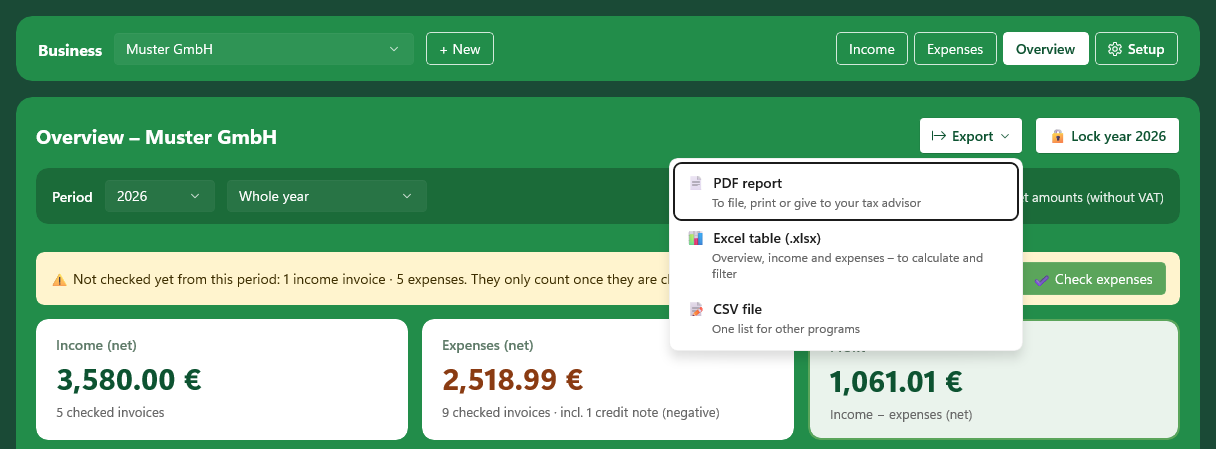
- “📄 PDF report”: to file, print or give to your tax advisor. Page 1 shows the summary, followed by the lists of income and expenses.
- “📊 Excel table (.xlsx)”: with the sheets Overview, Income and Expenses, to calculate and filter.
- “📝 CSV file”: one list for other programs.
Choose where the file is saved. Then open it with “Open” or show it with “Show in folder”.
The PDF report and the Excel table show at the top whether invoices were counted by invoice date or by payment date.
With “Count by: Payment date”:
All three exports have the extra column “Paid on”. Invoices that aren’t paid yet are not included. The PDF report and the Excel table show a note with how many there are.
13. Where Does MySorty Save the Check Status?
- MySorty saves the check status in a hidden file “.mysorty-verified.json” directly in the income folder and in the expense folder. That way it is part of your backup too. Don’t delete this file.
- If MySorty can’t write to the folder, the status is only saved on this PC.
- Your invoices themselves are never changed, moved or deleted.
- Everything stays on your PC. Nothing is uploaded.
14. Tips
- Create one folder for income and one for expenses, with subfolders per year or month, and leave “Also search all subfolders” on.
- Check your invoices regularly, e.g. once a month, with “✔ Check open ones”.
- Hide quotes and delivery notes with 🚫 to keep the list tidy.
- Give your tax advisor the PDF report or the Excel table.
- If you count by payment date, check regularly with the filter “⏳ Unpaid” which invoices have been paid in the meantime.
- Lock a year after your tax return so that nothing changes by mistake.