
MySorty AI: Sort and Rename Documents
Automatically (Beta Add-on)
With MySorty AI, your documents are sorted automatically, even when no matching tag rule exists yet. The AI also gives files with meaningless names like “Scan_0001.pdf” a clear name. The AI runs completely offline on your PC, your documents are never uploaded.
Note:
The AI is a beta feature and is only included in MySorty Pro (the Privat Pro and Business Pro plans). It can make mistakes, so please check the rules and file names created by the AI.
1. Requirements:
- MySorty Pro (Privat Pro or Business Pro)
- 64-bit Windows (x64)
- About 3 GB of disk space for the AI (about 6 GB of free space is needed during installation)
- At least 8 GB of RAM recommended
- An internet connection is only needed for the one-time download and the license check.
- Optional: a separate graphics card (e.g. NVIDIA or AMD Radeon) – the AI then answers much faster
2. Open the AI Settings:
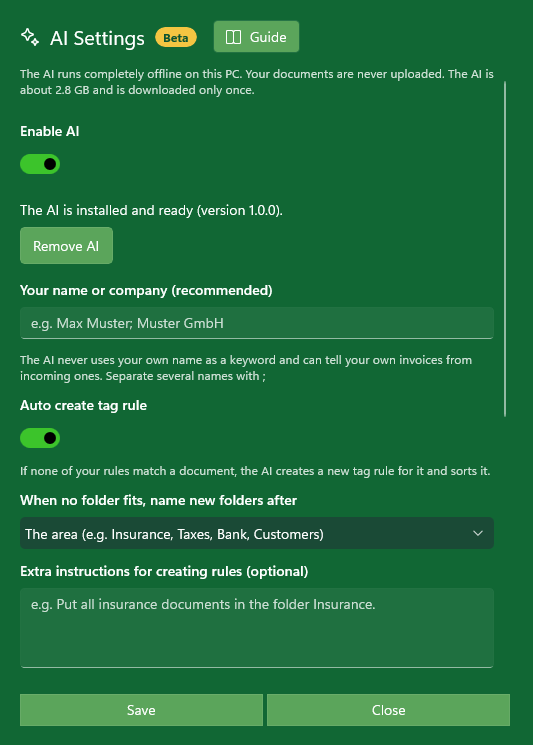
Open Tags Management and click “AI Settings” at the bottom.
At the top of the window you will see the “Beta” label. The “Guide” button opens this page at any time.
3. Enable and Download the AI:
Step-by-Step Guide:
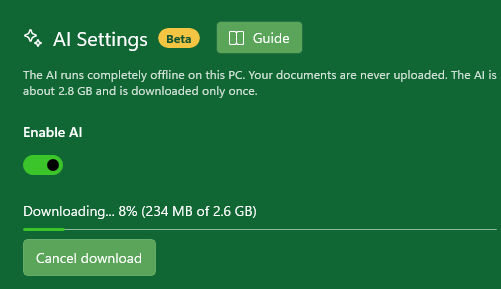
- Turn on “Enable AI”.
- MySorty checks your Pro license (“Checking your license...”). Without a Pro license, the AI stays off.
- Click “Download AI”.
- The download starts. You can see the progress in percent and in GB.
- The AI is then verified and installed (“Verifying and installing...”).
- Done: “The AI is installed and ready.”
Notes:
- You can stop the download at any time with “Cancel download”. Next time it continues where it stopped.
- The AI is downloaded only once.
- The other options can only be used after the AI has been downloaded.
4. Your Name or Company (recommended):
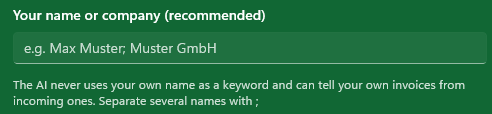
Enter your name and/or your company here, e.g. Max Muster; Muster GmbH. Separate several names with a semicolon (;).
Why is this important?
Your own name appears on almost every letter. When the AI knows it, it never uses it as a tag – otherwise a rule with your name would catch almost every document. It also lets the AI tell your own invoices apart from incoming invoices.
Note:
Your name is only stored locally on your PC.
5. Auto Create Tag Rule:
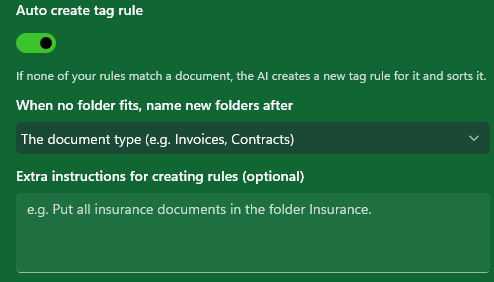
When this switch is on and none of your tag rules match a document during sorting, the AI reads the document, creates a new tag rule and sorts the document.
Folder:
If the document fits one of your existing folders, the AI uses that folder. Only if none fits does it create a new folder (see section 6).
Tags:
The AI picks words from the document that will also appear on future documents of the same kind, e.g. the name of the company or authority, a fixed number (customer, contract or policy number) or a typical heading.
Never used as a tag:
Your own name, dates, amounts, invoice numbers and addresses.
Matching Mode:
AI rules use “All Tags” – a rule only applies when all of its tags are found in the document.
AI rules in the rule list:
Rules created by the AI are marked with a green “AI” badge. You can edit or delete them like any other rule. As soon as you edit an AI rule, it counts as your own rule and the badge disappears.
Notes:
- In each sort run, the AI only handles a limited number of documents without a matching rule, so your PC is not busy for too long: at most 3 on the processor, up to 20 with a graphics card. Further documents follow in the next sort run.
- The AI checks each document only once. If it cannot find a suitable rule, the document stays unsorted.
- If you change your instructions, your name or the folder naming and click “Save”, the AI checks the unsorted documents again at the next sort.
6. When No Folder Fits, Name New Folders After:
Here you choose how the AI names new folders:
The area (default):
e.g. Insurance, Taxes, Bank, Health, Customers
The company, authority or person:
e.g. Telekom, Finanzamt Koblenz, AOK
The document type:
e.g. Invoices, Contracts, Bank statements
7. Extra Instructions for Creating Rules (optional):
Here you tell the AI in your own words how it should sort. Your instructions take priority over the AI's default rules.
Examples:
- Put all insurance documents in the folder Insurance.
- Everything from my daughter's school goes into the folder School Lily.
- Sort customer invoices by customer name.
Notes:
- Instructions that are only meant for certain documents (e.g. “Everything from my daughter's school …”) are only applied to matching documents.
- Maximum 500 characters.
- For fixed assignments like “everything with the word X goes into folder Y”, a normal tag rule is more reliable than an AI instruction.
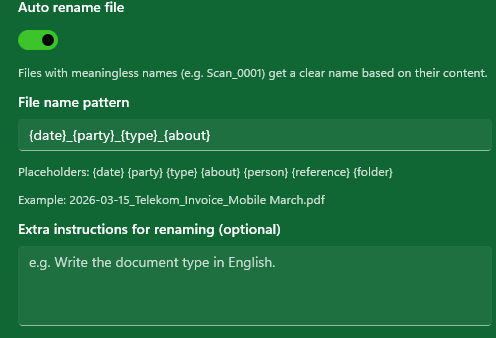
8. Auto Rename File:
When this switch is on, files with meaningless names get a clear name based on their content.
Example:
Scan_0001.pdf → 2026-03-15_Telekom_Invoice_Mobile March.pdf
Names like Scan_0001, IMG_1234, WhatsApp Image …, Screenshot …, Document or Untitled count as meaningless.
Notes:
- Meaningful file names are kept unchanged.
- Files are renamed when they are sorted – including files sorted by your own tag rules. Files that stay unsorted keep their name.
- The original file in the Archive Folder gets the same new name.
- If the AI cannot find a good name, the original name is kept.
9. File Name Pattern:
The pattern defines which parts the new file name is made of. Default:
{date}_{party}_{type}_{about}
Placeholders:
- {date} – Date of the document (YYYY-MM-DD). For invoices the invoice date, for letters the letter date, for bank statements and payslips the end of the period.
- {party} – Sender: company, authority or person. For your own invoices, the recipient.
- {type} – Document type, e.g. Invoice, Bank statement, Tax assessment
- {about} – What it is about, e.g. period, product or topic
- {person} – The person the document is about (e.g. child, customer, patient) – never you
- {reference} – A number, e.g. invoice, contract or case number
- {folder} – Name of the target folder
Below the field you immediately see an example. Parts that are not in the document are left out
automatically.
Example:
Pattern: {date}_{person}_{type}
Result: 2026-07-10_Lily Jones_School report.pdf
10. Extra Instructions for Renaming (optional):
Here you tell the AI in your own words what the file names should look like.
Examples:
- For invoices, put the invoice number at the end of the file name.
- For CVs, include the person's name in the file name.
- Write the document type in German.
Notes:
- Instructions for certain document types (e.g. “For invoices …”) only apply to those.
- MySorty checks that all words, numbers and dates in the new name really appear in the document. If not, the name is built from the pattern.
- Maximum 500 characters.
11. Use Graphics Card (Faster):
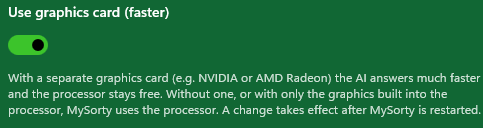
When this switch is on (default), the AI uses a separate graphics card, e.g. from NVIDIA or AMD Radeon. The AI then answers much faster and your processor stays free for your other programs.
Without a separate graphics card:
If your PC has no separate graphics card, or only the graphics built into the processor, MySorty automatically uses the processor. You don't need to change anything.
Which graphics card is used?
When you use “Test with a PDF…” (section 12), the first line of the result shows what the AI runs on: “Runs on: graphics card (…)” with the name of your graphics card, or “Runs on: processor”.
If the graphics card causes problems:
If the graphics card does not work properly on your PC (e.g. because of a driver error), MySorty automatically switches to the processor and stays with it. The window then shows the note “The graphics card caused a problem on this PC, so the AI uses the processor. …”. You can find details via “Open AI logs”. To try the graphics card again, switch the option off and on, click “Save” and restart MySorty.
Hinweise:
A change only takes effect after MySorty is restarted.
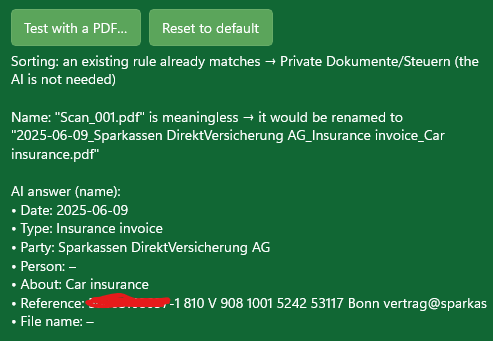
12. Test with a PDF:
With “Test with a PDF…” you choose a PDF and immediately see what the AI would do. Nothing is saved, moved or renamed.
The test uses the current entries in the window, even if you have not saved them yet. This way you can try out instructions before saving them.
Runs on:
Whether the AI uses the graphics card (with its name) or the processor.
Sorting:
Whether one of your rules already matches, or which rule the AI would create.
AI answer (sorting):
What the AI recognized in the document: document, folder and keywords.
Name:
Whether the file name is meaningless and how the AI would name the file.
AI answer (name):
The recognized parts: date, type, party, person, about, reference and file name.
Notes:
- The PDF must contain readable text. Run scanned PDFs without text through MySorty's OCR first.
- The first test may take a little longer because the AI is loaded first.
13. Reset to Default, Save, Close and AI Logs:
Reset to default:
Clears both instruction fields, sets the file name pattern back to the default and the folder naming to
“The area”. Your name and the switches stay unchanged.
Save:
Applies your changes to name, switches, instructions and pattern.
Close:
Closes the window without applying the changes. The “Enable AI” switch is saved immediately.
Open AI logs:
Opens the folder with the AI error logs. If the AI does not work, send the newest file to support. An empty folder means no AI errors were recorded.
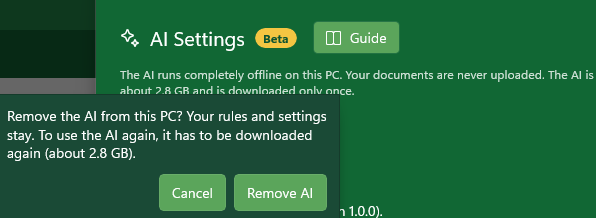
14. Remove AI:
With “Remove AI” you delete the AI files (about 3 GB) from your PC. A confirmation appears first.
Your rules and settings are kept. To use the AI again, you have to download it again.
15. What Happens During Sorting?
In the status messages under “Operations” you can see what the AI is doing:
- “AI is analyzing: …” – the AI is reading a document.
- “AI created the tag rule "Insurance" with the tags: ERGO, 55-123456” – a new rule was created.
- “AI renamed: Scan_0001.pdf → …” – a file got a new name.
- “AI could not find a suitable rule for: …” – the document stays unsorted.
- “The AI will handle the remaining documents in the next sort run.”
16. Privacy and Performance:
- The AI runs completely offline on your PC. Your documents, rules, file names and entries stay on your PC and are not used for training.
- The AI only works when it is needed – during sorting or testing. On first use it is loaded and then uses a few GB of RAM. It is unloaded automatically at the latest 2 minutes after its last answer.
- How fast a document is analyzed depends on your PC. With a separate graphics card it is much faster (see section 11).
- To make the AI answer faster, MySorty remembers its fixed instructions to the AI in a file in the AI folder (about 180 MB). It only contains MySorty's own text, nothing from your documents. After an update, the first document takes a little longer once.
17. Tips:
- Create your own tag rules for your most important folders, the AI takes care of the rest.
- Check new AI rules (green “AI” badge) regularly and adjust them if needed.
- Did the AI choose the wrong folder? Edit or delete the rule and add an instruction if needed.
- Back up your tag rules regularly with “Backup Tag Rules” in Tags Management.